
This guide takes you through placing a screening order in the Verifile Customer Portal, from opening the form to finding the order once it is placed. It covers both ways of ordering, whether you are using one of your agreed packages or choosing every check yourself.
On this page
- •Before you start
- •Opening the order form
•Stage one, order setup(click here to show/hide contents)
•Stage two, order details(click here to show/hide contents)
- •Stage three, summary
- •What happens next
- •Finding the order afterwards
- •Leaving an order before it is placed
Before you start
You will need the candidate’s full name, email address and mobile number. The order cannot be placed without them.
You'll also need to know which account the order belongs to, if your organisation has more than one, and either the package you want or the individual checks you want to run.
You'll also need to know which account the order belongs to, if your organisation has more than one, and either the package you want or the individual checks you want to run.
iTip
You don't need the candidate’s date of birth, address history or documents. The candidate supplies those themselves once they receive their welcome email which is sent at time of submitting the order.
Opening the order form
Select Orders in the left-hand menu, then Create order at the top right of the page.

The form has three stages, listed down the left of the page as you work through them. Stage one is Order setup, which is where the account, the package and the checks are decided.
Stage one, order setup
Choosing the account
Choose the account the order is being placed from, then choose Select. If your organisation has only one account, it is still chosen here.
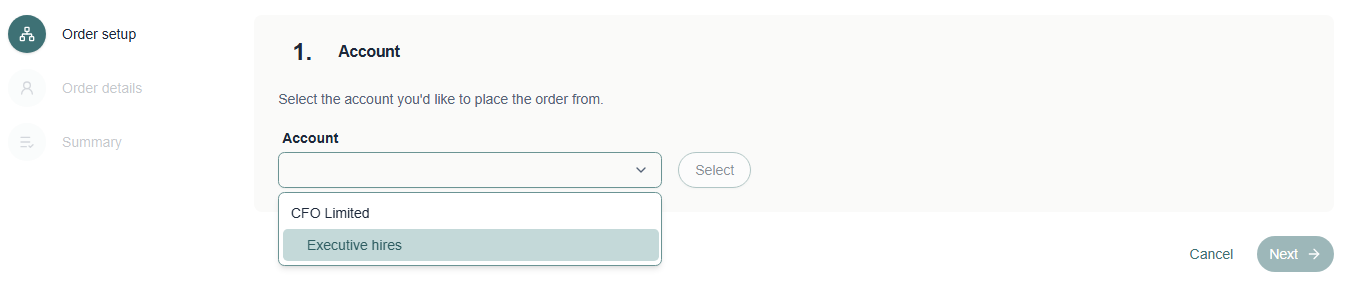
The next section only appears once the account is confirmed, because the packages and prices available depend on it.
Choosing a package, or not
There are two ways to build an order, and this is where they separate.
| With a package | Without a package | |
|---|---|---|
| What you choose | One of your agreed packages | Every check individually |
| Checks included | Set by the package | Whichever you add |
| Extra checks | Optional, on top of the package | This is how the order is built |
| Service type | Comes with the package | You choose it yourself |
Ordering with a package
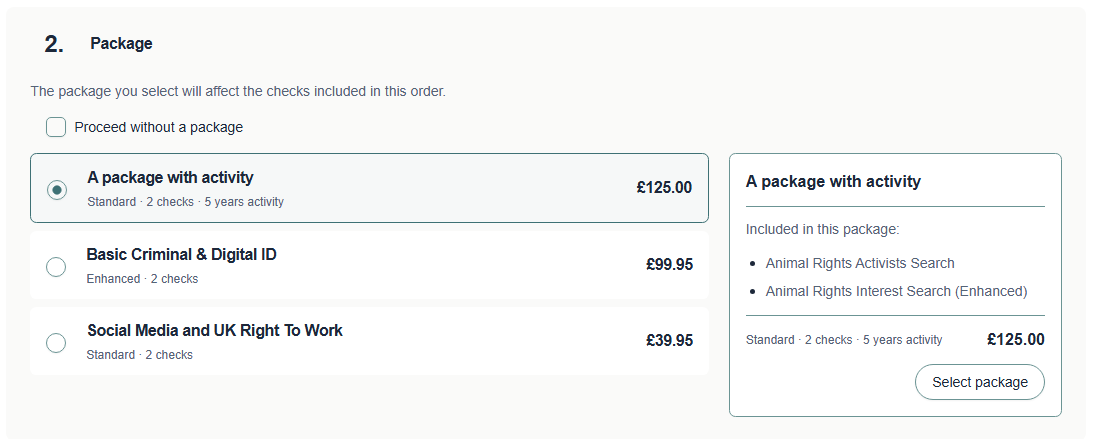
Select a package to see what it contains. The panel on the right lists the checks included the service type and the price.
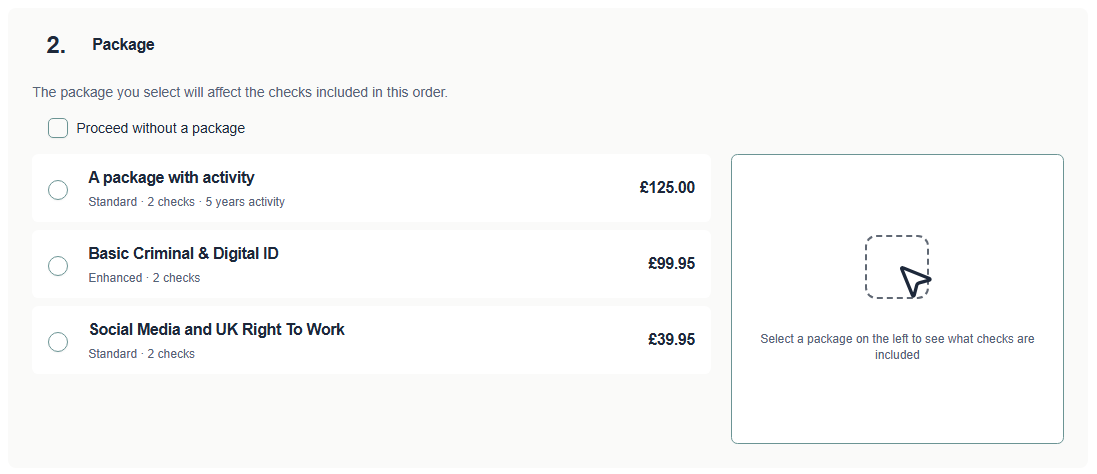
!Important
Selecting a package only previews it. You must then choose Select package in the panel on the right to apply it. Until you do, the order will not move on.
If placing the order fails with an error after you have chosen a package, the package may have passed its end date. Choose another, or contact us to have it renewed.
Ordering without a package
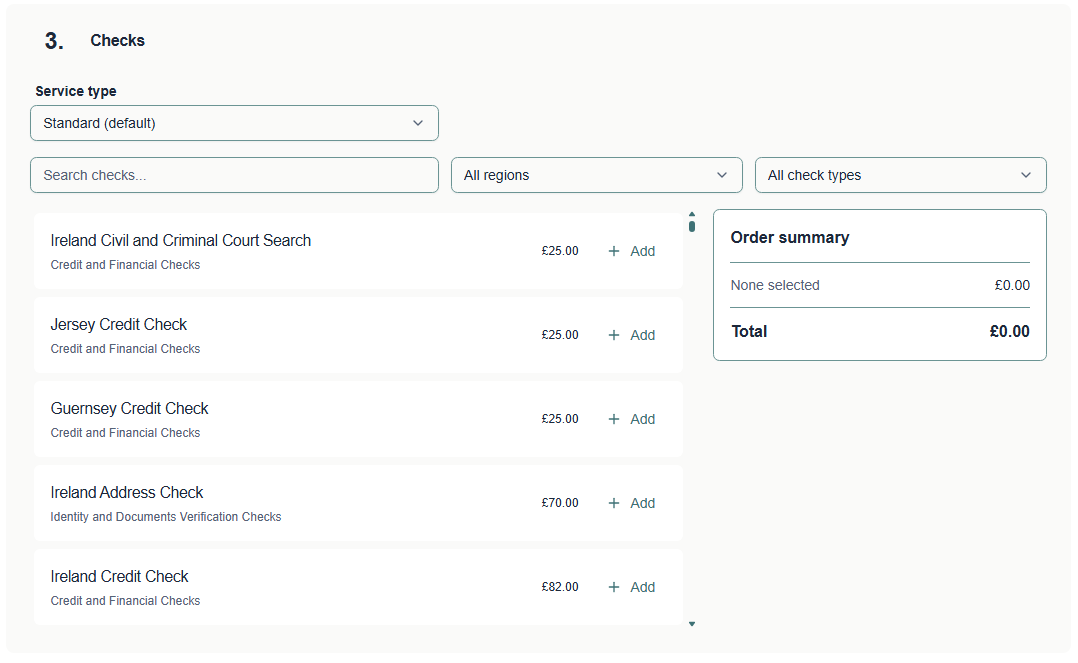
Tick Proceed without a package and you build the order check by check instead. A Service type setting appears, which does not exist on the package route because a package carries its own.
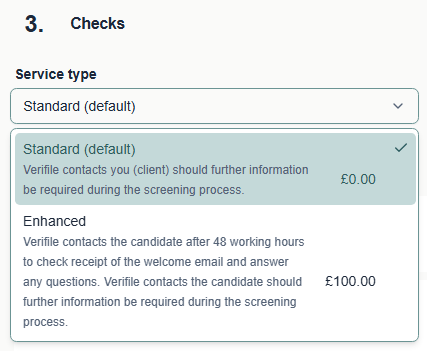
| Service type | What it means | Cost |
|---|---|---|
| Standard | Verifile contacts you, the client, if further information is needed during screening. | Included |
| Enhanced | Verifile contacts the candidate after 48 working hours to check they received the welcome email and to answer questions and contacts them directly if further information is needed. | £100.00* |
*All prices are subject to change, and this article may not reflect your actual pricing.
Below that is the full list of checks. Add whichever the role requires.
Below that is the full list of checks. Add whichever the role requires.
Adding extra checks
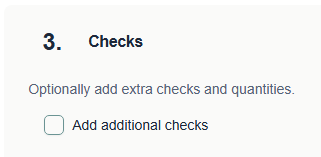
On the package route, tick Add additional checks to open the same list and add anything the package does not already cover.
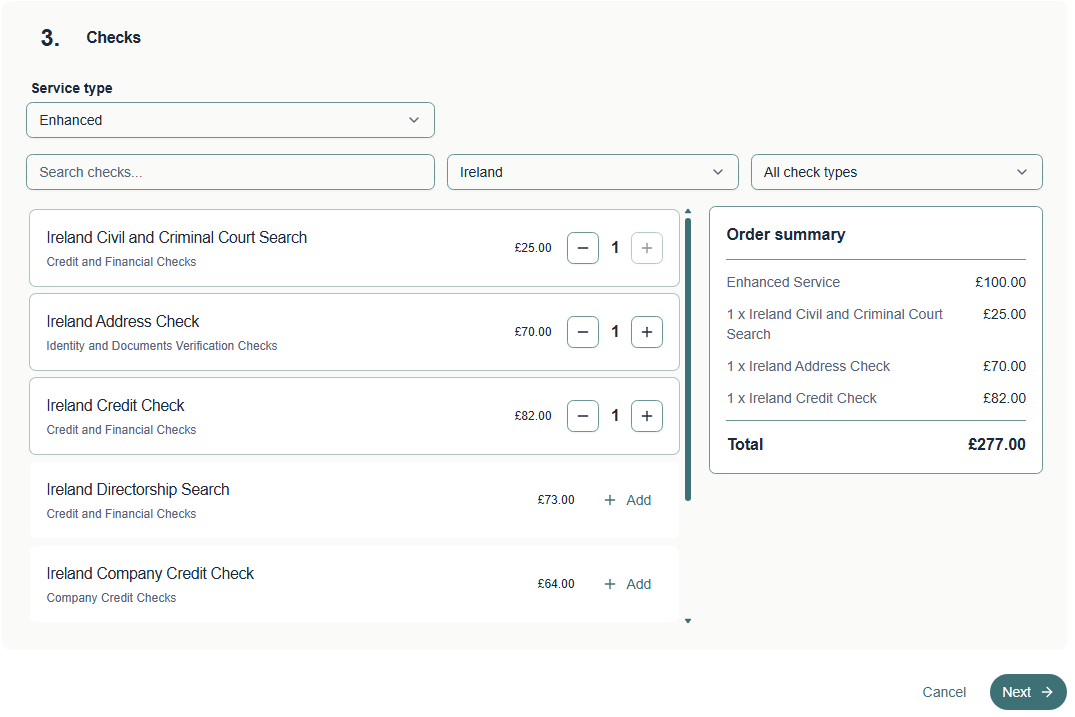
Use the search box to find a check by name or narrow the list with the region and check type filters. Select Add beside a check to include it and use the plus and minus buttons to change how many of it you need. Note: Some checks only permit a single addition.
iTip
The order summary on the right updates as you go, so you can see the running total before you commit to anything.
Stage two, order details
iNote
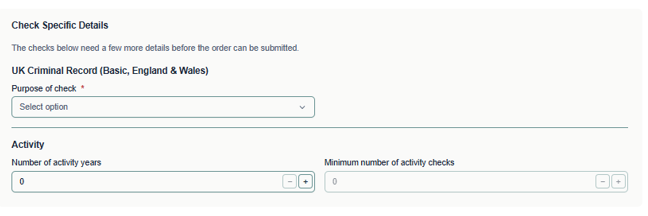
Some checks ask for more than the basics. A DBS check, for example, adds questions about the purpose of the check and the role, and these become required once that check is on the order. The form only ever shows what is actually needed, so work through whatever appears.
Candidate details
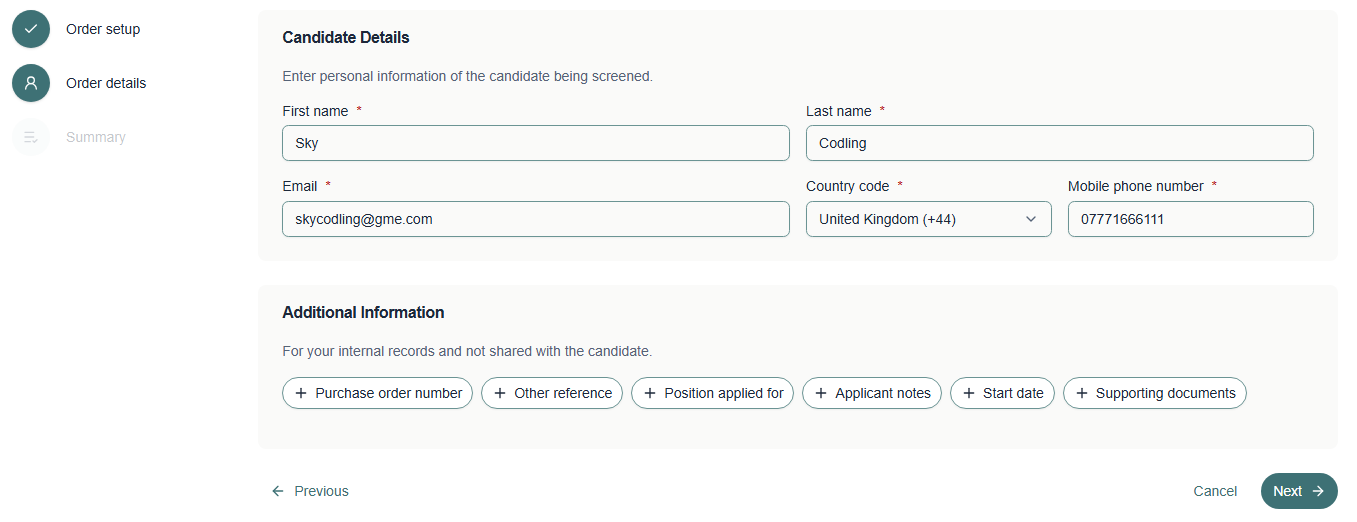
Enter the candidate’s first name, last name, email address, country code and mobile number. All five are required, and the email address is the one the candidate will receive their welcome email at, so it is worth checking carefully. A common reason for none-receipt of the welcome email is an incorrect email address.
iNote
The expected information fields may vary depending on the check chosen (See below).
Additional information
Everything in this section is optional and none of it is shared with the candidate. Select a field to add it, fill it in, and use the bin icon if you change your mind.
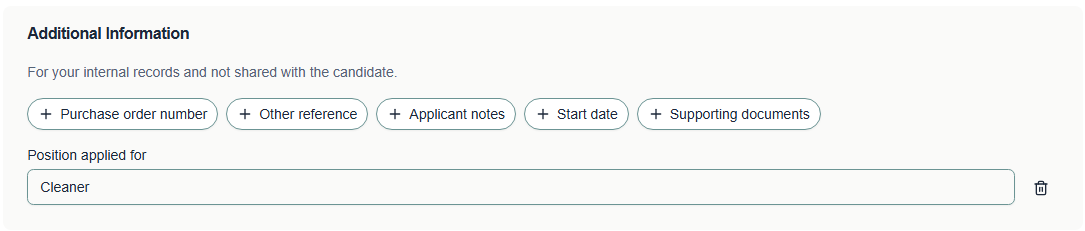
- Purchase order number, if your finance team needs one on the invoice
- Other reference, for anything else you file the order against
- Position applied for, which helps you judge what is relevant
- Applicant notes, for anything you should know about this candidate
- Start date, so you can see how urgent the screening is
- Supporting documents, if you already hold anything useful
Stage three, summary
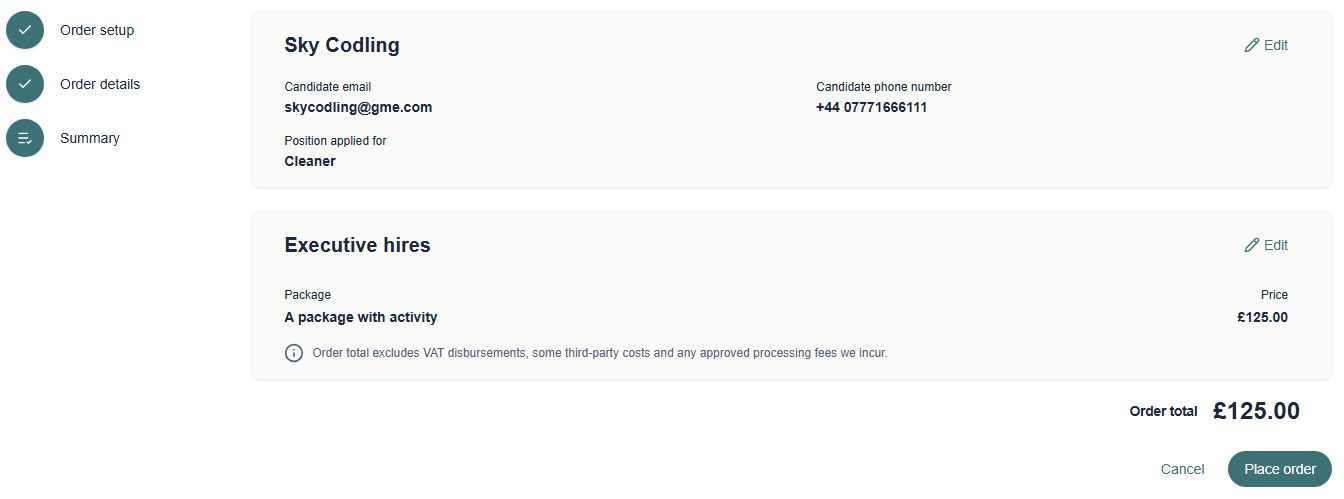
The summary shows the candidate, the account, the package or checks, and the total. Select Edit beside either panel to go back and change something.
iNote
The total excludes VAT, disbursements, some third-party costs and any approved processing fees we incur.
When you are happy, select Place order.
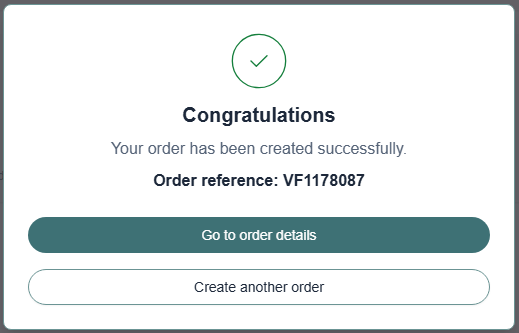
You will see a confirmation with the order reference, which is worth noting. From there you can go straight to the order or start another.
What happens next
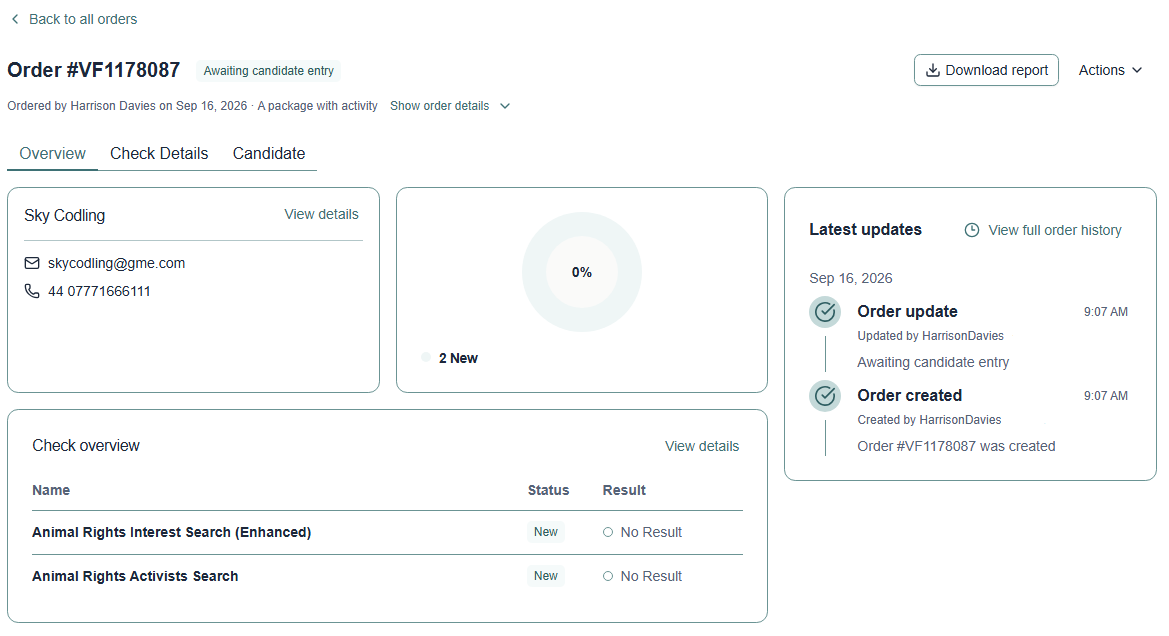
The candidate receives a welcome email inviting them to complete their part. Until they do, the order sits at Awaiting candidate entry, and screening begins once they have finished.
Finding the order afterwards
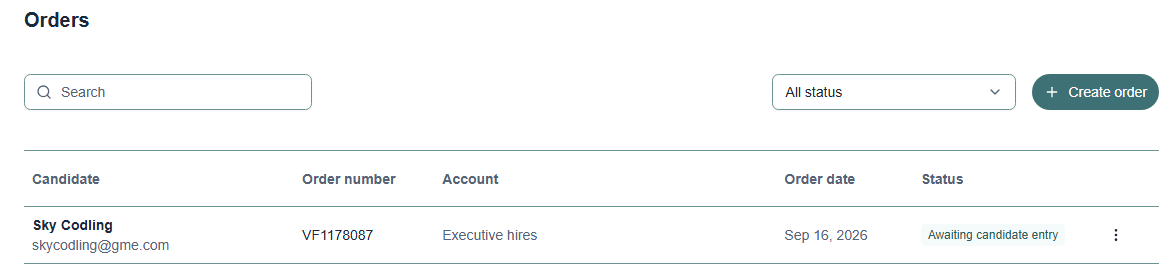
New orders appear at the top of the Orders list. Search by order number, candidate name or email address to find one later, or narrow the list using the status filter.
iTip
If you have just placed an order and cannot see it, refresh the page. The list does not always pick up a brand-new order on its own.
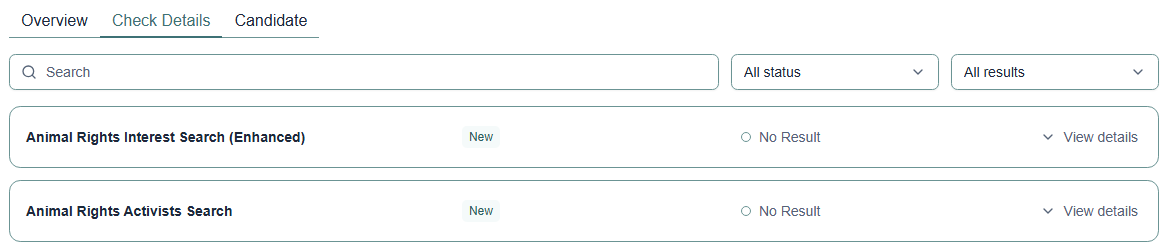
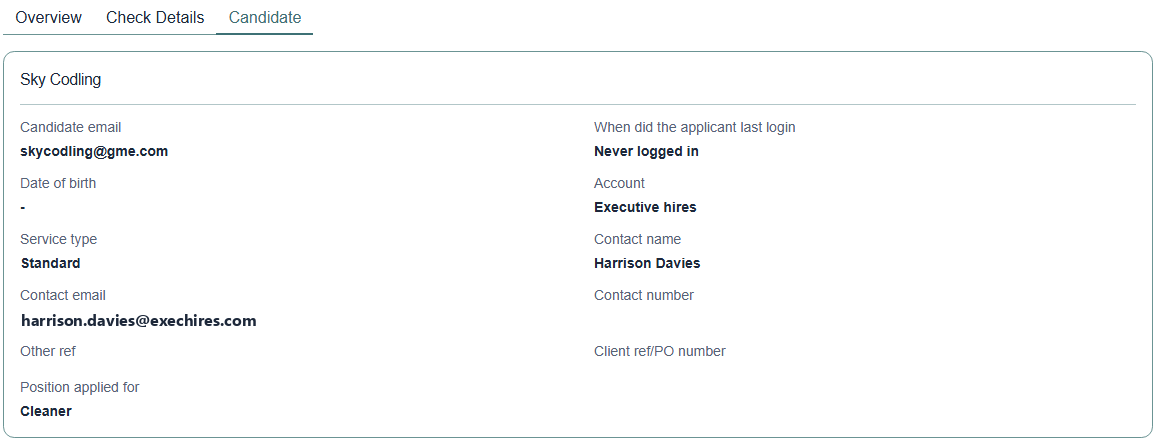
- Select an order to open it. The Overview tab shows progress and the latest updates, Check Details shows each check and its result, and Candidate shows the details the order was placed with.
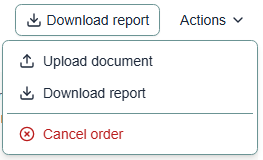
- The Actions menu on an open order lets you upload a document, download the report, or cancel the order.
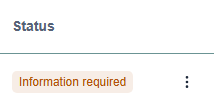
- You can reach the same options without opening the order, using the three dot menu at the end of any row in the list.
Leaving an order before it is placed
Select Cancel at any point. You will be asked to confirm, because anything entered so far is lost and a part-built order is not saved as a draft.
!Important
Nothing is kept until you select Place order. If you need to stop partway and come back, make a note of what you had chosen first.
Related articles
- Choosing a package for an order
- Entering candidate details
- Adding optional details to an order
- Cancelling an order
Need help?
Live Chat is available on the right, and you can self-serve via our Help Centre.
Call us at +44 (0) 1234 339 350 (Monday to Friday, 8:30 a.m. to 5:30 p.m. U.K. time).
Email service@verifile.co.uk.
Was this article helpful?
That’s Great!
Thank you for your feedback
Sorry! We couldn't be helpful
Thank you for your feedback
Feedback sent
We appreciate your effort and will try to fix the article