
On this page
Where this happens
Packages are chosen at stage one of the order, under Order setup, once you have confirmed the account. The section does not appear until the account is set, because the packages available depend on it.
Choosing a package
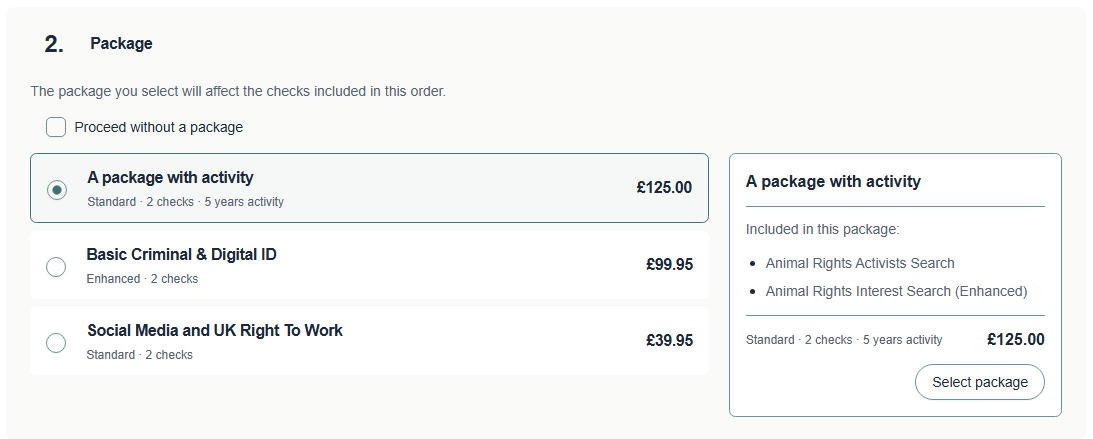
Select a package to see what it holds. The panel on the right lists the checks it includes, the service type it runs at, and the price.
Note The preview can list more checks than the package runs, for example showing both UK and worldwide versions of the same check. The order itself is correct once placed. If you are unsure what a package covers, ask us to confirm.
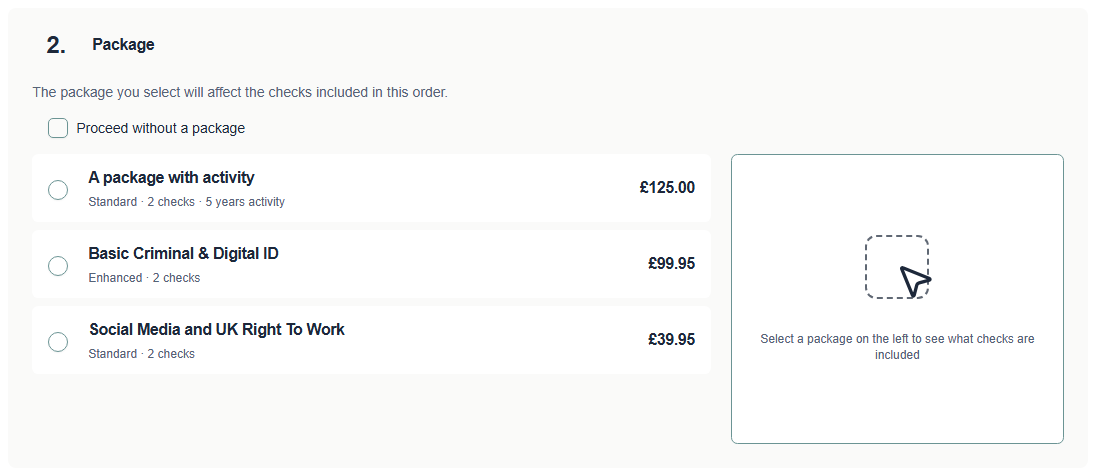
Important Selecting a package only previews it. You must then choose Select package in the panel on the right to actually apply it. Until you do, the order will not move on, and this is the most common place people get stuck.
Warning If placing the order fails with an error after you have chosen a package, the package may have passed its end date. Expired packages can still appear in the list. Choose another or contact us to have it renewed.
Once applied, the section collapses to show the package you chose. Use the pencil icon beside it to change your mind.
Adding checks on top of a package
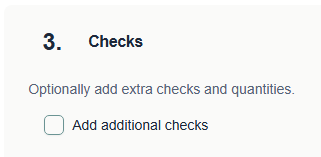
A package can be extended. Tick Add additional checks under Checks to open the full list.
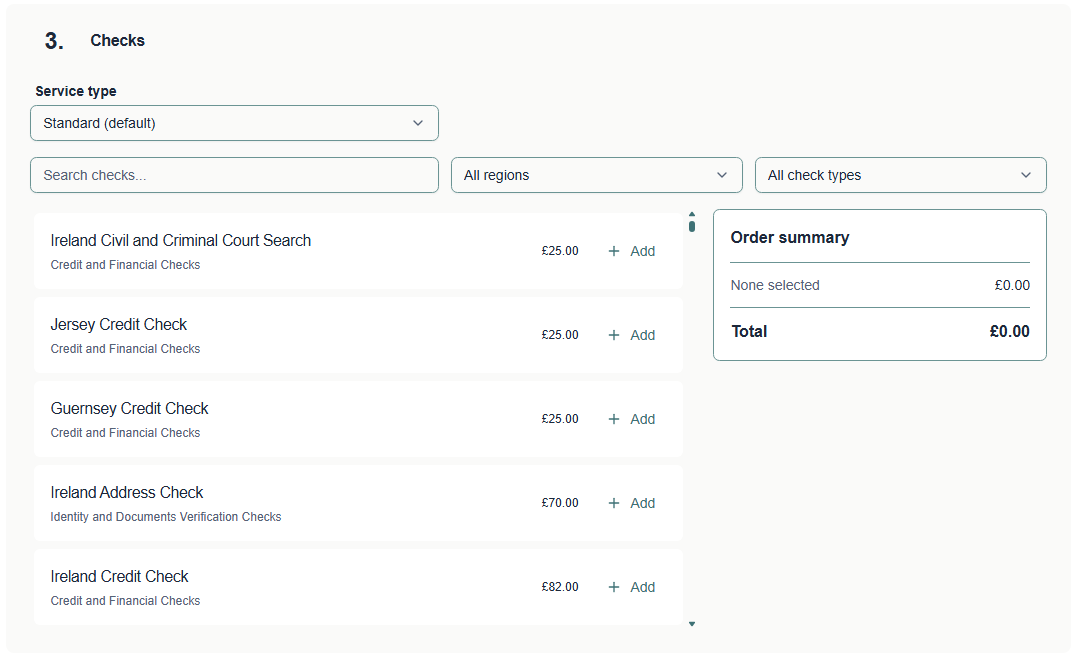
Search for a check by name, or narrow the list using the region and check type filters. Choose Add beside a check to include it, then use the plus and minus buttons if you need more than one.

Tip The order summary on the right updates as you add, so you can watch the total before committing to anything.
Ordering without a package
If no package suits the role, tick Proceed without a package and build the order check by check instead.
One thing appears on this route that does not exist on the other: a Service type setting. On the package route the service type comes with the package, so there is nothing to choose.
Standard or enhanced
Service type decides who we contact while the screening is running, and it makes a real difference to how much chasing falls to you.
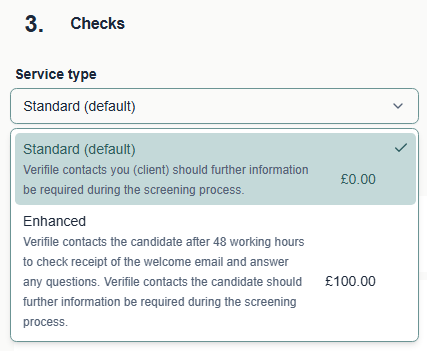
| Standard | Enhanced | |
|---|---|---|
| Who we contact if more information is needed | You, the client | The candidate directly |
| Candidate contacted proactively | No | Yes, after 48 working hours |
| What that call covers | Not applicable | Checking the welcome email arrived, and answering any questions |
| Cost | Included | An additional charge, shown against the option |
Tip Enhanced is worth considering where candidates are likely to need prompting, for example high volume recruitment or roles where people are between jobs and slower to respond.
If something is missing
If a check you need is not in the list, or a package you expected is not shown, it is likely to be a matter of what is enabled on your account rather than something you can fix in the form. Contact your Verifile account manager.
Related articles
Was this article helpful?
That’s Great!
Thank you for your feedback
Sorry! We couldn't be helpful
Thank you for your feedback
Feedback sent
We appreciate your effort and will try to fix the article