The Customer Portal is where you place, track and review your screening orders. This guide shows you where everything is and what it does, including the features that stay hidden until you click them.
On this page
- •Finding your way around
- •The Orders page
(click here to show/hide contents)
- •Order statuses
- •Inside an order
(click here to show/hide contents)
- •Checking progress yourself
(click here to show/hide contents)
- •Quick guide: I want to...
iNote · Want an update on an order?
You can find it yourself. Open the order, select View full order history and use the filters. See Checking progress yourself below.
Finding your way around
The left sidebar and the top bar are on every page.
| Area | Where | What it does |
|---|---|---|
| Orders | Sidebar | Lists all your orders. This is the main working area. |
| Knowledge Base | Sidebar, bottom | Opens our help articles, including this one. |
| Support | Sidebar, bottom | Contact our team if you need help. |
| Toggle sidebar | Top left | Collapses or expands the sidebar. |
| Notifications | Top right (bell) | Shows alerts about your orders. |
| User menu | Top right (your initial) | Shows your name and email, and the Log out option. |
iNote · Greyed out menu items
Dashboard, Documentation and Settings may appear greyed out. These are not available yet and cannot be selected.
The Orders page
The Orders page lists every order on your account, newest first. Each row shows the candidate, order number, account, order date and status.
Find and create orders
- Type in Search to find an order by candidate name, order number or account.

The toolbar at the top of the Orders page
- Use the status filter to show orders at one stage only. Select All status to clear it.
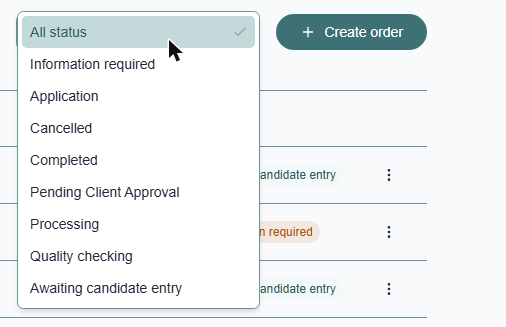
The status filter options
- Select Create order to start a new order. Choose the account, add the order details, then check the summary before you submit.
- Select the three dots at the end of a row for View order, Download report or Cancel order.
Upload document is not in this menu. Open the order to find it.
Order statuses
The status tells you where an order is. These are the options in the status filter.
| Status | Meaning |
|---|---|
| Awaiting candidate entry | The order is placed and we are waiting for the candidate to enter their details. |
| Application | The candidate’s application is in progress. |
| Information required | We need more information before we can continue. |
| Pending Client Approval | We are waiting for approval from you. |
| Processing | Checks are being carried out. |
| Quality checking | The results are being reviewed before release. |
| Completed | All checks are finished and the report is ready. |
| Cancelled | The order has been cancelled. |
Inside an order
Select an order, or choose View order from the three dots menu, to open it. Use Back to all orders to return to the list.
See the full order details
- Select Show order details under the order number. It reveals the account, order date, service type, contact and your client reference or PO number.
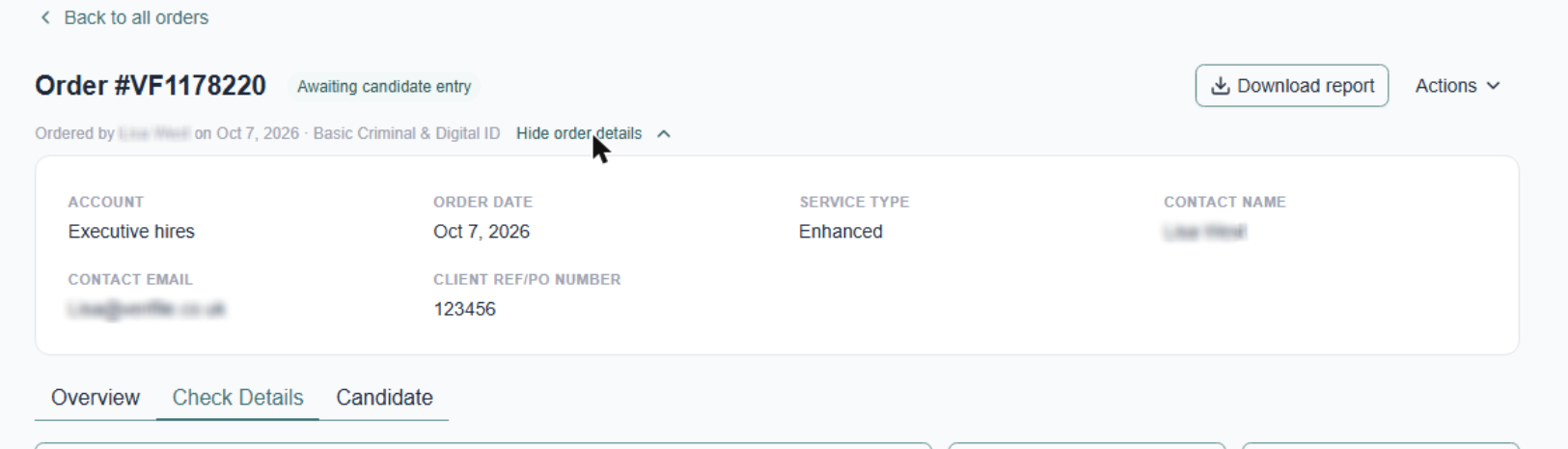
Select Hide order details to close it again
| Tab | What you will find |
|---|---|
| Overview | A summary: the candidate’s contact details, a progress ring showing completed checks, a Check overview table (status and result for each check) and Latest updates. |
| Check Details | Every check on the order. Search by name, or filter by status or result. |
| Candidate | The candidate’s details, such as service type, account, contact name, client reference and when they last logged in. |
Upload document can be found in Actions
!Important · Easy to miss
There is no Upload document button. It is only in the Actions menu at the top right of the order page.
Upload a document
- Open the order, then select Actions at the top right.
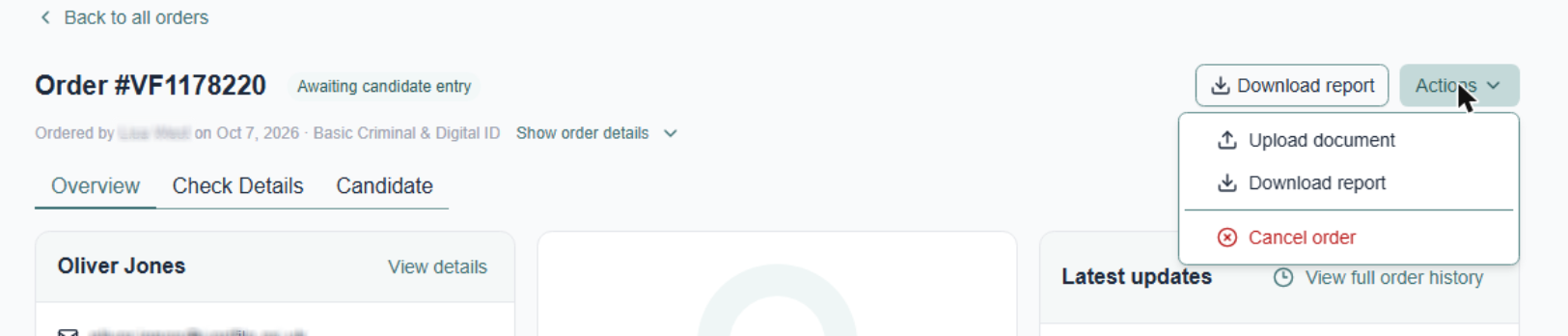
The Actions menu on an order
- Select Upload document and choose your file.
Check Details: open each check
iTip · Easy to miss
Each check is collapsed. The small View details link at the right of the row opens it.
Read the detail of a check
- Open the Check Details tab. Each check shows its status and result.
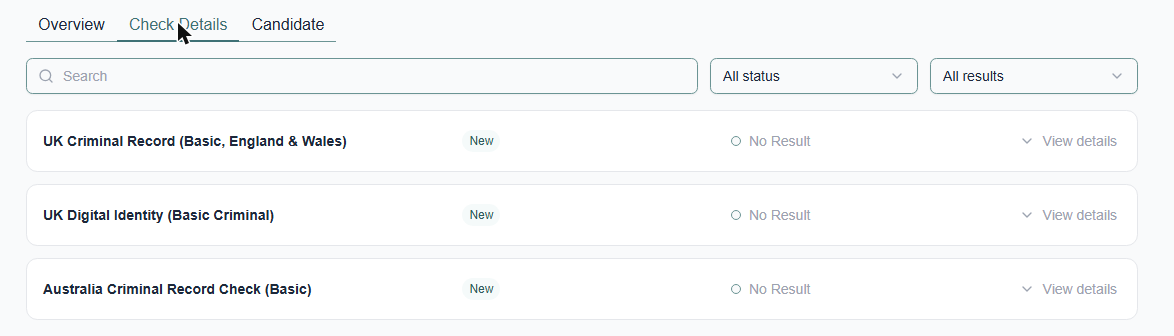
Checks are collapsed by default
- Select View details on a check. Two tabs appear: Check history and Additional information.
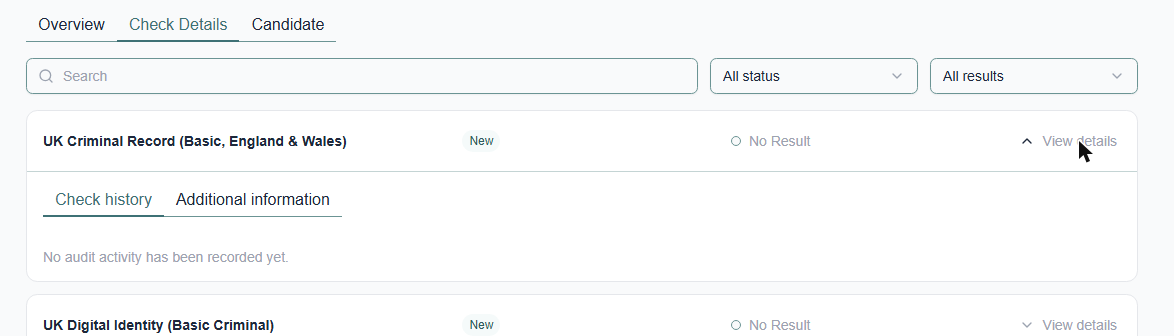
An expanded check
Check history shows the audit trail for that check only.
Check history shows the audit trail for that check only.
Checking progress yourself
Order history is the best place to find an update on an order. It is the full audit trail of notes, status updates and document changes, each with a date, time and the name of who made the change. The Latest updates panel on the Overview tab only shows the newest few entries, so do not rely on it alone.
1
Open the order
2
View full order history
3
Choose a filter
4
Still stuck? Contact Support
Open the order history
- On the Overview tab, select View full order history (top of the Latest updates panel).
- Use the filters at the top. The number on each filter is how many entries it holds.
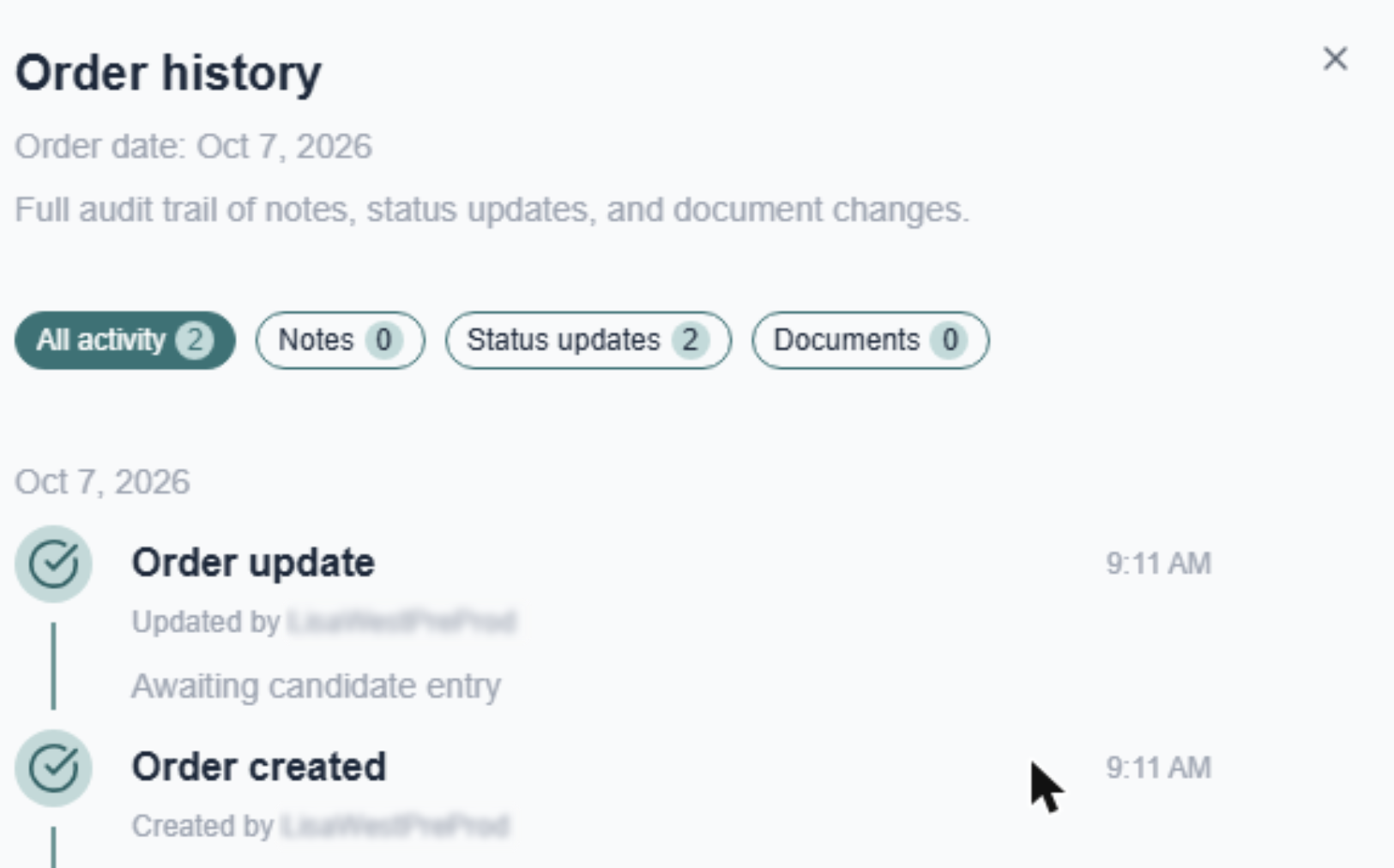
The Order history panel
How far has my order got?
Select Status updates to see each time the status changed.
What has the team done?
Select Notes to read notes from our team or the system, such as when a supplier was contacted.
Has my document arrived?
Select Documents to see documents added to or removed from the order.
iTip · Notes for one check
To see notes about a single check, open Check Details, select View details on that check and read its Check history.
Quick guide: I want to...
| I want to... | Go to |
|---|---|
| Find an order | Orders, then type a candidate name, order number or account in Search. |
| See only orders in one status | Orders, then the status filter. |
| Place a new order | Orders, then Create order. |
| Check progress on an order | Open the order, then View full order history and use the filters. |
| See the result of one check | Open the order, then Check Details, then View details on the check. |
| Add a document to an order | Open the order, then Actions, then Upload document. |
| Download the report | Download report on the order page, or the three dots on the Orders list. |
| Cancel an order | Actions, then Cancel order. |
| See the candidate’s details | Open the order, then the Candidate tab. |
Common questions
Why can’t I click Dashboard, Documentation or Settings?
These areas are not available yet. They appear greyed out until they are released.
Where do I upload a document?
Open the order, then select Actions at the top right and choose Upload document.
Why does Check history say no audit activity has been recorded?
Nothing has happened on that check yet. Entries appear as the check progresses.
Need help?
Live Chat is available on the right, and you can self-serve via our Help Centre.
Call us at +44 (0) 1234 339 350 (Monday to Friday, 8:30 a.m. to 5:30 p.m. U.K. time).
Email service@verifile.co.uk.
Was this article helpful?
That’s Great!
Thank you for your feedback
Sorry! We couldn't be helpful
Thank you for your feedback
Feedback sent
We appreciate your effort and will try to fix the article